TECNOAMBASSADOR · PRESTASHOP MODULE
Tecno Candado
Back office screen lock with an unlock code.
|
| Your back office holds orders, customers and your business data: don't leave it open. Tecno Candado locks the screen with a modal and an unlock code that belongs to each employee, either by hand or automatically on inactivity. And if someone closes the tab or the computer goes to sleep, it asks for login again on return. |
| 🔒 Shortcut Ctrl + Alt + L 🛡️ Server-side lock 🌎 English and Spanish |
What can you do?
|
| |
🔒 Manual and automatic lock
- Manual: with the floating padlock on any back office screen, or with the shortcut Ctrl + Alt + L.
- Automatic: it locks by itself after the minutes of inactivity you choose (0 = disabled).
- The floating padlock can be shown or hidden for all employees, and each person can hide it in their own browser.
|
|
| |
| |
🔢 Each employee, their own code
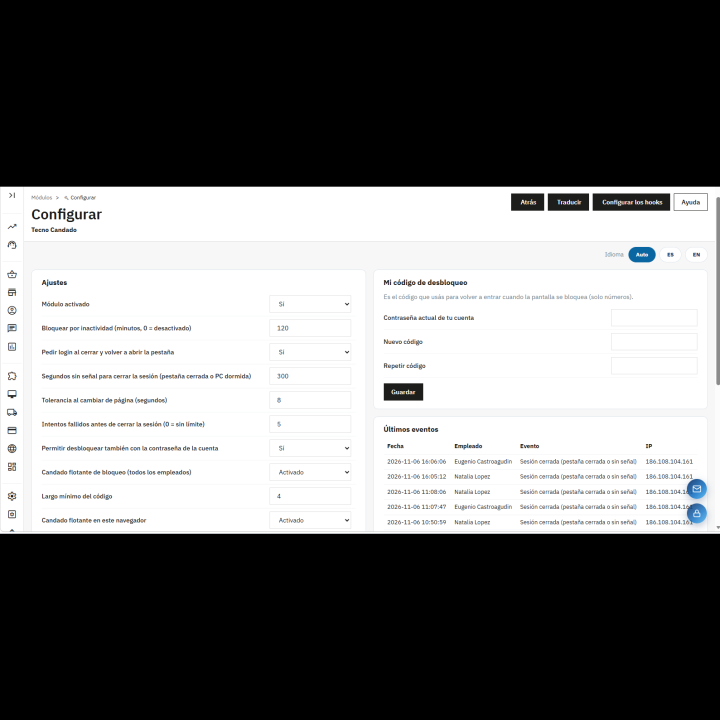
- Each person creates their unlock code, numbers only, from the panel or when locking for the first time.
- To create or change it, the account's current password is required.
- Configurable minimum code length, from 4 to 10 digits.
- The code is stored encrypted, never as readable text.
- Optional: also allow unlocking with the account password. If the employee hasn't created a code yet, they unlock with their password.
|
|
| |
| |
🛡️ A real lock, enforced on the server
- Even if someone deletes the modal from the browser inspector, the back office does not respond until the code is entered.
- Protects both the classic and the new back office screens (orders, products, customers...).
- Background actions are also blocked while the screen is locked.
|
|
| |
| |
🚪 Logs out if you walk away
- If the tab is closed, or the computer goes to sleep, login is asked for again on return.
- Choose how many seconds without a signal are tolerated before logging out.
- Configurable tolerance when changing pages, so it doesn't log out by mistake.
- Limited failed attempts: when exceeded, the session is closed (0 = unlimited).
- “Log out” button available on the lock screen itself.
|
|
| |
| |
👥 Team control
- Employee list showing who has already set a code and who hasn't.
- A SuperAdmin can reset the code of any employee who forgot it.
|
|
| |
| |
📋 Event log
- Screen locked and unlocked.
- Failed unlock attempts.
- Sessions closed, because of a closed tab or no signal, too many attempts, or from the lock itself.
- Codes created, changed or reset by an administrator.
- Each event with date, employee and IP, in a latest-events list inside the panel.
|
|
| |
| |
⚙️ A control panel made to fit you
- Switch to turn the whole module on or off.
- All times and limits are adjusted from a single panel, with recommended values from installation.
- “How it works” section inside the panel.
- Panel and lock screen in English and Spanish, with an Auto / ES / EN selector.
|
|
| |
✅ Benefits
- Your orders and customer data protected if someone steps away from the computer.
- Each employee with their own code, without sharing passwords.
- A lock that can't be bypassed by tampering with the browser screen.
- A record of who locked, unlocked or failed, and from which IP.
|
| |
Requirements
- PrestaShop 1.7 or higher.
- JavaScript enabled in the back office browser.
- Important: uninstalling the module deletes the employees' codes and the event log.
|